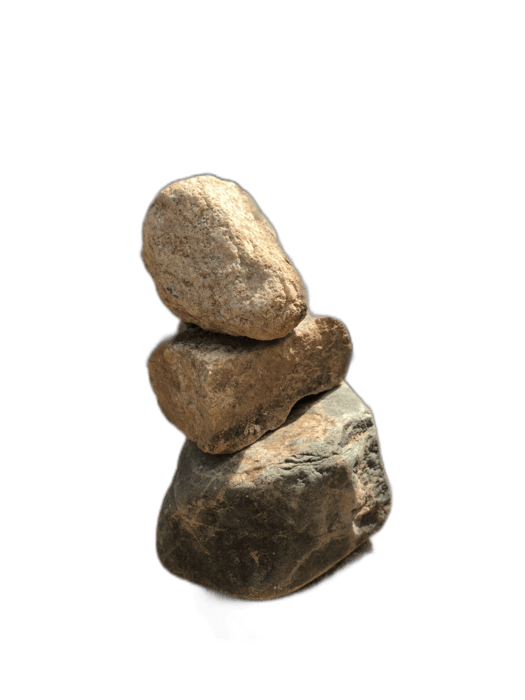
PowerPoint has a built-in "Remove Background" tool, but it's frustratingly imprecise — requiring manual marking of areas to keep and remove. RemoveBackgroundAI produces much better results automatically, giving you a clean transparent PNG that you can insert into any PowerPoint slide.
Geen ondertekening benodig. Vry om te gebruik.
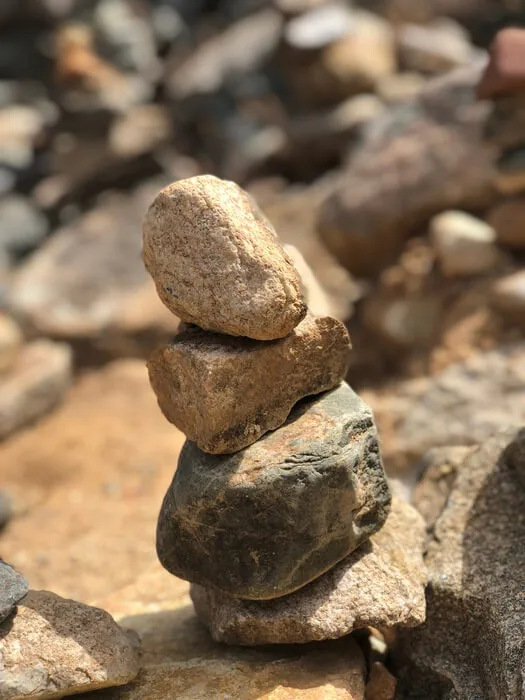
Upload your image to RemoveBackgroundAI.com. The AI produces a clean result in seconds — no manual marking needed.
In PowerPoint, gaan na Voeg by > Pictures > Hierdie Toestel, en kies jou deursigtige PNG.
Die beeld verskyn met volledige deursigtigheid op jou skuif. Vergroot en plaas dit as nodige. Dit lae volmaak oor skyfievertonings en ander elemente.
PowerPoint's built-in Remove Background tool requires manual adjustments and often produces jagged edges. RemoveBackgroundAI's AI produces clean, professional results automatically, especially with complex subjects like people and hair.
Probeer dit nou verniet. Geen tekening benodig.
Begin met RemoveBackgroundAI.com →While PowerPoint has a built-in tool (Picture Format > Remove Background), it requires manual adjustment and often produces poor results. For better quality, use RemoveBackgroundAI.com, then insert the transparent PNG into your presentation.
Yes. Transparent PNGs from RemoveBackgroundAI work perfectly in Google Slides, Keynote, and LibreOffice Impress.
Join millions of users who trust RemoveBackgroundAI for fast, accurate, and free background removal.
Begin met RemoveBackgroundAI.com →