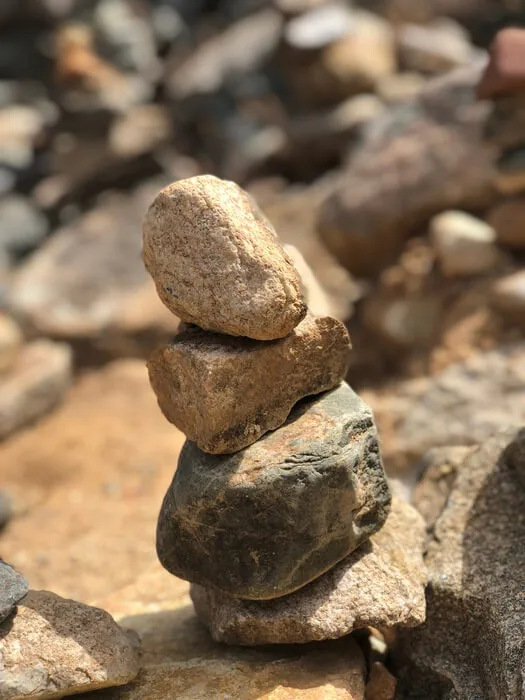
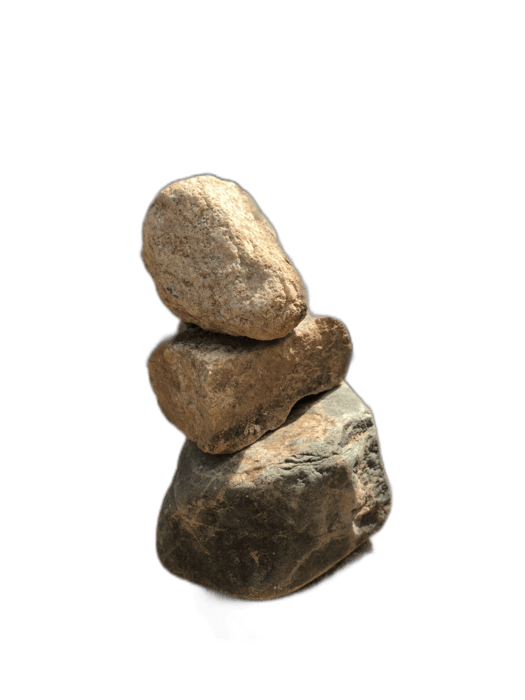
PowerPoint has a built-in "Remove Background" tool, but it's frustratingly imprecise — requiring manual marking of areas to keep and remove. RemoveBackgroundAI produces much better results automatically, giving you a clean transparent PNG that you can insert into any PowerPoint slide.
No signup required. Free to use.
Upload your image to RemoveBackgroundAI.com. The AI produces a clean result in seconds — no manual marking needed.
In PowerPoint, go to Insert > Pictures > This Device, and select your transparent PNG.
The image appears with full transparency on your slide. Resize and position it as needed. It layers perfectly over slide backgrounds and other elements.
PowerPoint's built-in Remove Background tool requires manual adjustments and often produces jagged edges. RemoveBackgroundAI's AI produces clean, professional results automatically, especially with complex subjects like people and hair.
Try it now for free. No signup required.
Začínáme s RemoveBackgroundAI.com →While PowerPoint has a built-in tool (Picture Format > Remove Background), it requires manual adjustment and often produces poor results. For better quality, use RemoveBackgroundAI.com, then insert the transparent PNG into your presentation.
Yes. Transparent PNGs from RemoveBackgroundAI work perfectly in Google Slides, Keynote, and LibreOffice Impress.
Join millions of users who trust RemoveBackgroundAI for fast, accurate, and free background removal.
Začínáme s RemoveBackgroundAI.com →