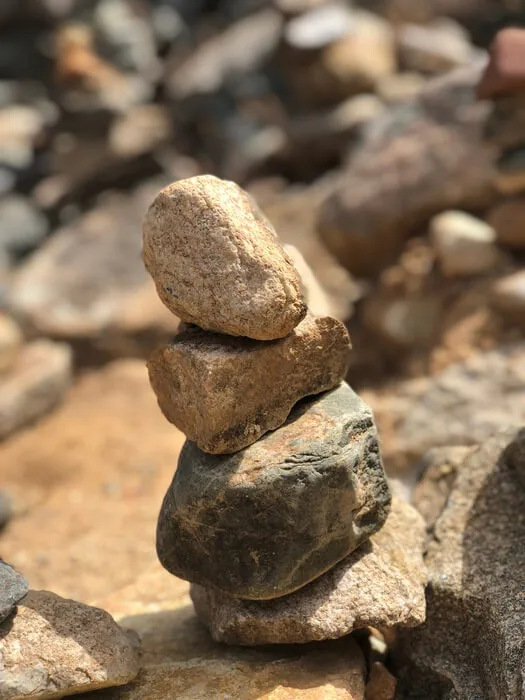
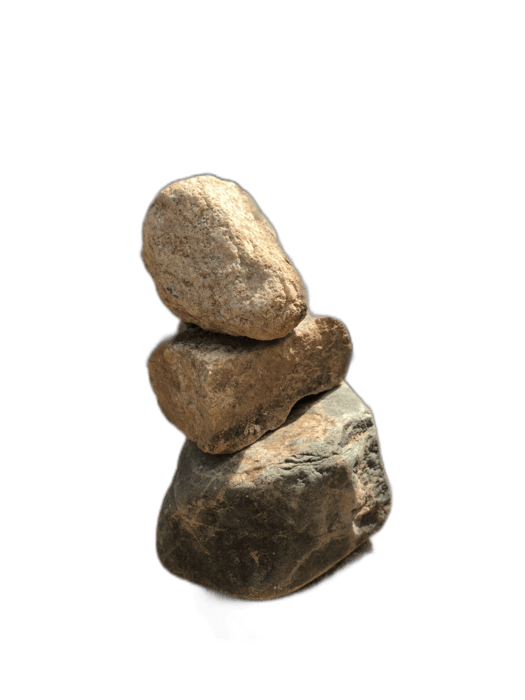
RAW photo files (CR2, NEF, ARW, DNG, ORF, RAF) contain unprocessed sensor data from DSLR and mirrorless cameras, offering maximum quality and editing flexibility. While RemoveBackgroundAI works best with processed images, you can prepare your RAW files for background removal by first exporting them from your RAW editor (Lightroom, Capture One, or darktable) as high-quality JPG or PNG, then uploading for AI processing.
No signup required. Free to use.
Open your RAW file in Lightroom, Capture One, or any RAW editor. Apply your desired edits (exposure, color), then export as a high-quality JPG or 16-bit PNG.
Upload the exported JPG or PNG to RemoveBackgroundAI.com. The high quality of RAW-derived images gives the AI excellent detail to work with.
Download the result as a transparent PNG. The superior detail from your RAW file translates to cleaner, more precise edge detection.
RAW files contain more color and detail data than JPG, which means images exported from RAW have better edge definition. This gives our AI more information to work with, resulting in exceptionally clean background removal — especially for fine details like hair and fur.
Try it now for free. No signup required.
Commencez avec RemoveBackgroundAI.com →RAW files should be exported as JPG or PNG first from your RAW editor (Lightroom, Capture One, etc.). This ensures color processing is applied before background removal.
Yes. Images derived from RAW files have more detail and better edge definition than JPGs from smartphones, which helps the AI produce cleaner, more precise cutouts.
Join millions of users who trust RemoveBackgroundAI for fast, accurate, and free background removal.
Commencez avec RemoveBackgroundAI.com →