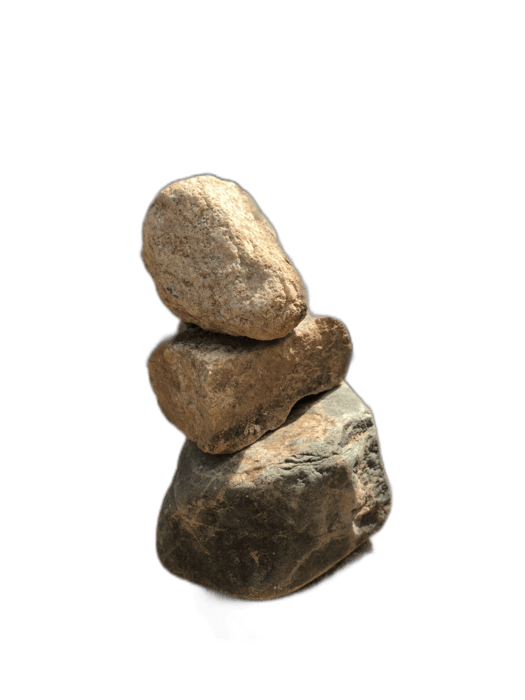
I-Google Docs ayihlinzeki ngezinto zokulungisa isithombe zokususa isizinda. Uma ufuna isithombe esicacile kudokhumende, ingxelo, noma i-flyer eyenziwe nge-Google Docs, kufanele uqhubekele phambili isithombe ngaphandle. RemoveBackgroundAI idala ama-PNGs acacile afakwa ku-Google Docs futhi afakwe phezu kombhalo noma isizinda ngokuqinile.
Akukho ubhaliso odingekayo. Usebenzisa ngokukhululekileyo.
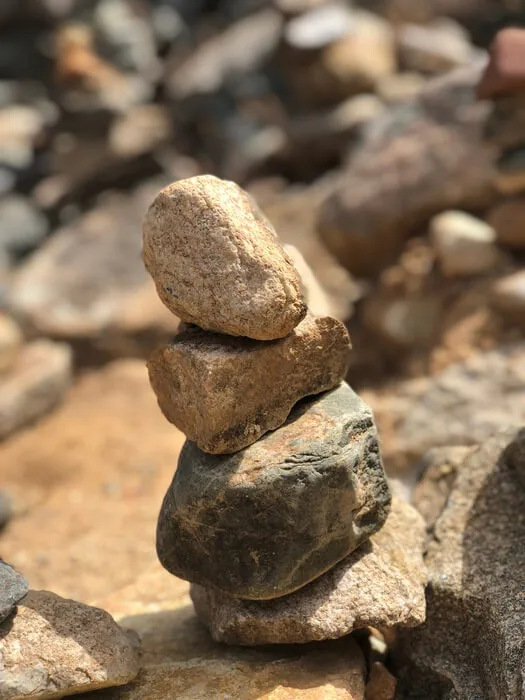
Layisha phezulu isithombe sakho ku-RemoveBackgroundAI.com. Layisha phezulu i-PNG ecacile.
Ku-Google Docs, chofoza Faka> Isithombe> Layisha phezulu kusuka kwikhompyutha. Khetha i-PNG yakho ekhanyayo.
Chofoza kusithombe bese ukhetha "Ngaphambi kombhalo" noma "Ngaphambi kombhalo" ukujikeleza ukuze ubeke isithombe esicacile ngezinto ezingaphakathi kwedokhumende lakho.
I-Google Docs ayinazo iziqukathi zokuhlela isithombe. RemoveBackgroundAI yindlela ekhawulezayo yokudala izithombe ezicacile zamadokhumende akho.
Zama manje mahhala. Akukho ubhaliso okungukuthi.
Qalisa ngeRemoveBackgroundAI.com →I-Google Docs ayikwazi ukuhlela isizinda sesithombe. Dala i-PNG yakho ekhanyayo nge-RemoveBackgroundAI.com, bese uyifaka ku-Google Docs.
Yebo. Amadokhumende kaGoogle agcina ukubukeka okucacile kwe-PNG. Amazindawo abukekayo abonisa isizinda sedokhumende noma umbhalo ongezansi kwesithombe.
Yilungu lezigidi zabasebenzisi abathembela ku-RemoveBackgroundAI ukususa isizinda ngokusheshayo, ngokunembile, futhi mahhala.
Qalisa ngeRemoveBackgroundAI.com →