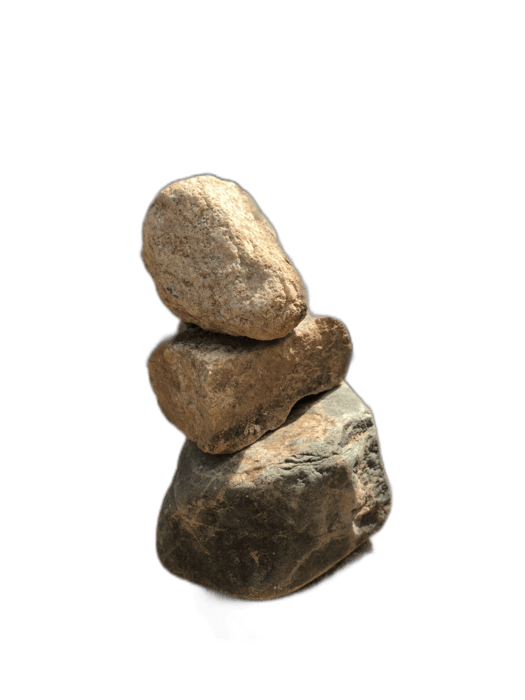
Google Slides does not have a background removal tool. If you want to use a photo without its background in a presentation, you need to process it externally first. RemoveBackgroundAI creates transparent PNGs that import perfectly into Google Slides, layering cleanly over slide backgrounds and other elements.
No signup required. Free to use.
Upload your image to RemoveBackgroundAI.com and download the transparent PNG.
In Google Slides, click Insert > Image > Upload from computer. Select your transparent PNG.
The image appears with full transparency. Drag and resize it on your slide. It layers cleanly over any slide background.
Google Slides has no background removal feature, unlike PowerPoint. RemoveBackgroundAI fills this gap for free, making Google Slides presentations look just as professional as PowerPoint decks.
Try it now for free. No signup required.
Comience con RemoveBackgroundAI.com →No. Google Slides does not have a background removal tool. Use RemoveBackgroundAI.com to create your transparent PNG, then insert it into Google Slides.
Yes. Google Slides fully supports transparent PNG images. The transparency is preserved when you insert the image into your slide.
Join millions of users who trust RemoveBackgroundAI for fast, accurate, and free background removal.
Comience con RemoveBackgroundAI.com →