Cara Menghapus Latar Belakang untuk Proyek Photoshop

Even experienced Photoshop users can save time by pre-processing background removal with AI. Instead of spending 5-15 minutes per image with the Pen Tool, Quick Selection, or Select and Mask, use RemoveBackgroundAI for instant removal, then import the transparent PNG into Photoshop for fine-tuning if needed.

Tidak perlu mendaftar, bebas digunakan.
Cara Menghapus Latar Belakang untuk Proyek Photoshop
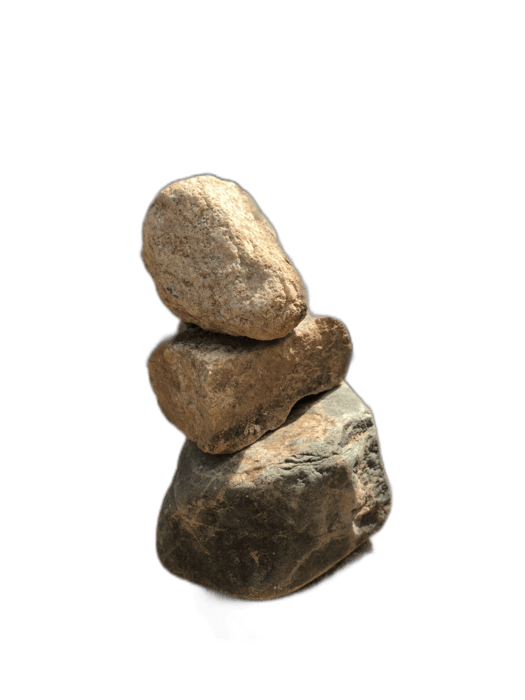
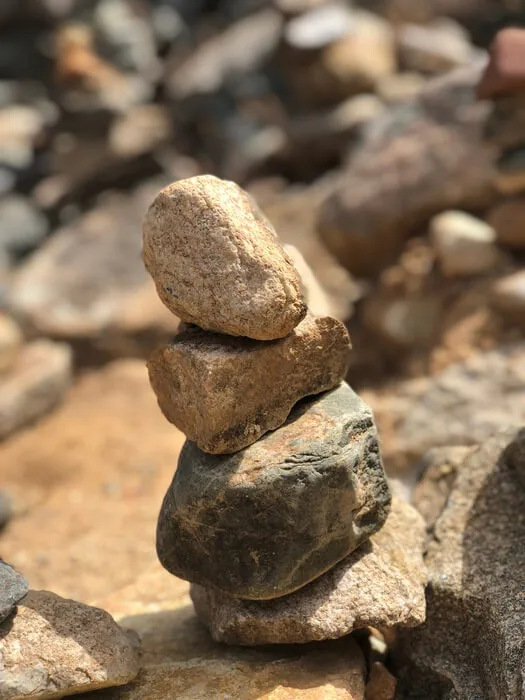
Cara Menghapus Latar Belakang untuk Proyek Photoshop - result
Asli Hasil

Panduan Langkah-demi-langkah

1

Upload to RemoveBackgroundAI

Proses gambar Anda dengan AI kami untuk penghapusan latar belakang instan.

2

Unduh PNG transparan

Dapatkan hasilnya sebagai transparansi tinggi PNG.

3

Buka di Photoshop

Buka PNG di Photoshop. Transparansi diawetkan sebagai kanal alpha. Buat sunting tambahan atau pengkomposisian.

Why Choose RemoveBackgroundAI?

This workflow combines the speed of AI with Photoshop's precision. Use RemoveBackgroundAI for the heavy lifting (90% of the work), then Photoshop for final touches.

100% Bebas Tidak ada signup AI-Poired 5s Pemrosesan

Tips Pro

  • Untuk pemrosesan batch, gunakan API kami untuk memproses ratusan gambar, lalu mengimpor semuanya ke Photoshop.
  • AI menangani masking rambut lebih baik daripada Photoshop's Select Subjek dalam banyak kasus.
  • Simpan aliran kerja Photoshop Anda dengan mulai dengan gambar pra-maded.

Siap Menghapus Latar Belakang?

Cobalah sekarang secara gratis, tidak perlu mendaftar.

Mulai dengan RemoveBackgroundAI.com →

Pertanyaan yang Sering Diajukan

In Photoshop, you can use Select > Subject, Quick Selection Tool, Magic Wand, or Pen Tool. However, for faster results, use RemoveBackgroundAI first and import the transparent PNG into Photoshop.

Cara Menghapus Latar Belakang untuk Proyek Photoshop

Join millions of users who trust RemoveBackgroundAI for fast, accurate, and free background removal.

Mulai dengan RemoveBackgroundAI.com →