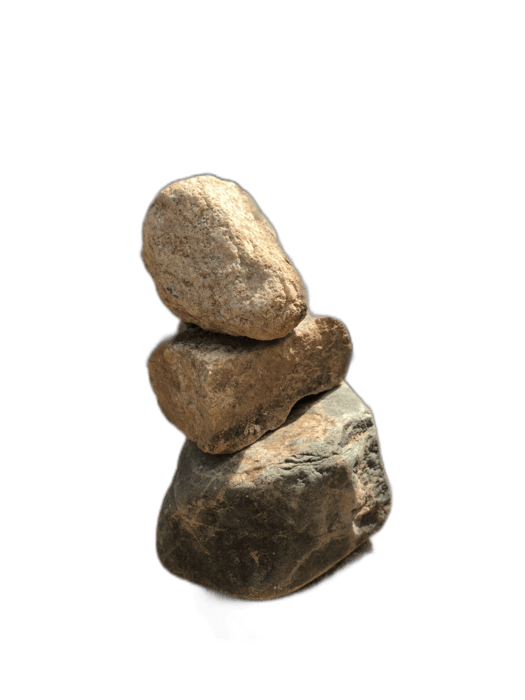
PowerPoint has a built-in "Remove Background" tool, but it's frustratingly imprecise — requiring manual marking of areas to keep and remove. RemoveBackgroundAI produces much better results automatically, giving you a clean transparent PNG that you can insert into any PowerPoint slide.
Tidak perlu mendaftar, bebas digunakan.
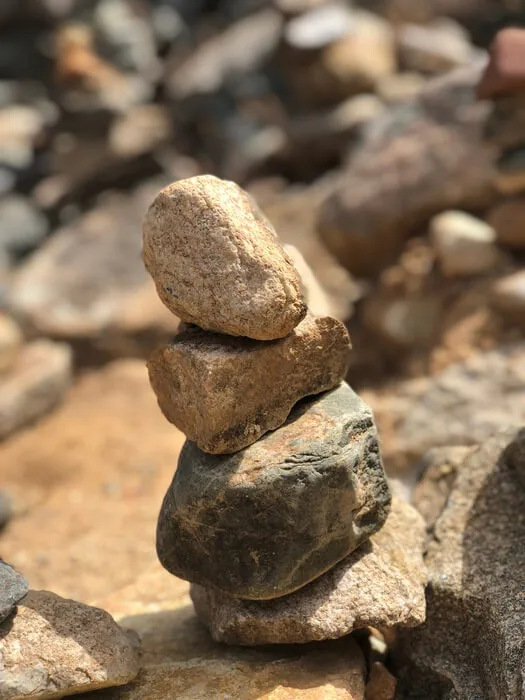
Upload your image to RemoveBackgroundAI.com. The AI produces a clean result in seconds — no manual marking needed.
Dalam PowerPoint, ke Sisipkan > Gambar > Perangkat ini, dan pilih PNG transparan Anda.
Gambar muncul dengan transparansi penuh pada slide Anda. Ubah ukuran dan posisi yang diperlukan. Ini lapisan sempurna atas latar belakang slide dan elemen lainnya.
PowerPoint's built-in Remove Background tool requires manual adjustments and often produces jagged edges. RemoveBackgroundAI's AI produces clean, professional results automatically, especially with complex subjects like people and hair.
Cobalah sekarang secara gratis, tidak perlu mendaftar.
Mulai dengan RemoveBackgroundAI.com →While PowerPoint has a built-in tool (Picture Format > Remove Background), it requires manual adjustment and often produces poor results. For better quality, use RemoveBackgroundAI.com, then insert the transparent PNG into your presentation.
Yes. Transparent PNGs from RemoveBackgroundAI work perfectly in Google Slides, Keynote, and LibreOffice Impress.
Join millions of users who trust RemoveBackgroundAI for fast, accurate, and free background removal.
Mulai dengan RemoveBackgroundAI.com →