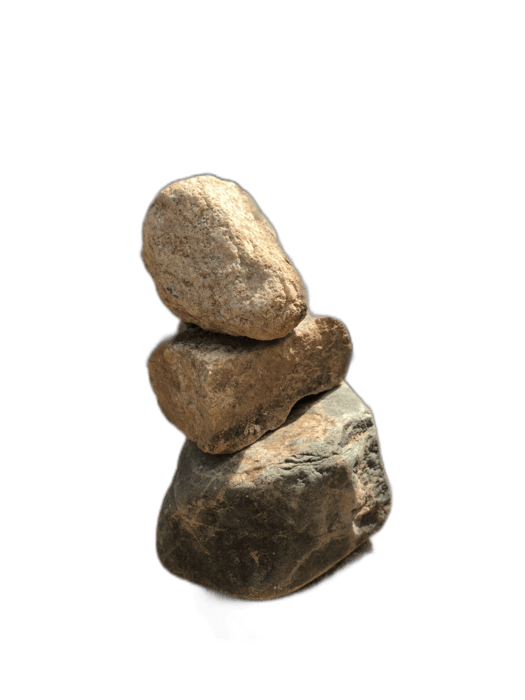
Like Word, Microsoft Excel includes a "Remove Background" option under Picture Format, but it's the same limited color-based tool that struggles with complex images. If you're inserting product images, headshots, or logos into Excel reports and dashboards, you want clean, professional results. The fastest approach is to process your images through RemoveBackgroundAI first, then insert the transparent PNGs into Excel.
कोई साइन अप आवश्यक नहीं. इस्तेमाल के लिए मुक्त.

अपने छवि को RemoveBackground कृत्रिम बुद्धि.com में अपलोड करो. एआई एक सटीक पारदर्शी कटौती सेकेंड में उत्पन्न करता है - CAL के निर्माण औज़ार से कहीं बेहतर है.
परिणाम सहेजें. पारदर्शी पीएनजी को साफ किनारों और कोई पृष्ठभूमि सामग्री नहीं होगी.
SIGICKIGIGEGGGEGGG > चित्रों को शामिल करने के लिए जाना और अपने पारदर्शी पीएनजी को चुनना. यह छवि सही पारदर्शिता के साथ प्रकट होती है, किसी भी कक्ष पृष्ठभूमि रंग के विरुद्ध किसी भी स्वच्छ देख रही है.
SERITENTIENT "REARS पृष्ठभूमि" शब्द के बराबर है, यह एक मूल औज़ार है जो सटीक के लिए बनाया नहीं गया था. यह निश्चित रूप से बैंजनी हाइलाइट क्षेत्रों का समायोजन की आवश्यकता होती है क्या रखने के लिए और दूर रखने के लिए, जो खराब परिणाम पैदा करता है. RemoveBackgroundALALALACOMAL पूरी प्रक्रियाARTERICONERICONALALALs के साथ पूरी तरह से काम करता है.
अब इसे मुक्त करने के लिए कोशिश करें.
RemoveBackgroundAI.com से आरंभ करें →Yes, Excel has a basic "Remove Background" tool under Picture Format, but it uses simple color detection and produces unreliable results. For clean, professional background removal, use RemoveBackgroundAI first, then insert the image into Excel.
जी हाँ. एक्सपोजरी का समर्थन पूरी तरह से करता है. पारदर्शी क्षेत्रों में सेल पृष्ठभूमि रंग या छवि के नीचे कोई भी सामग्री दिखाई जाएगी.
Join millions of users who trust RemoveBackgroundAI for fast, accurate, and free background removal.
RemoveBackgroundAI.com से आरंभ करें →