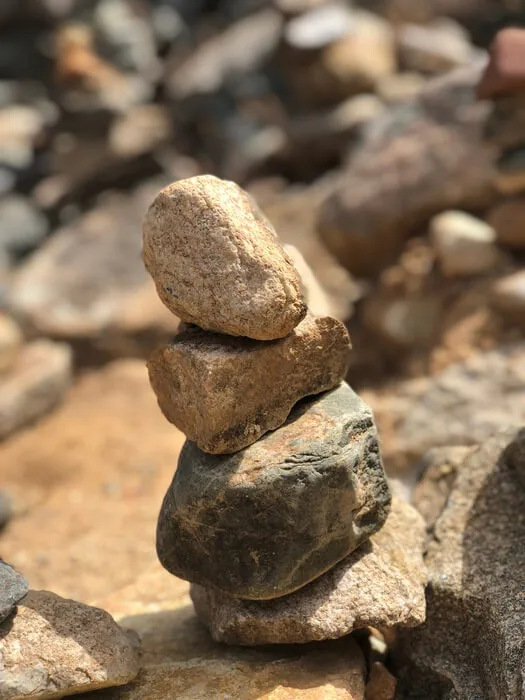
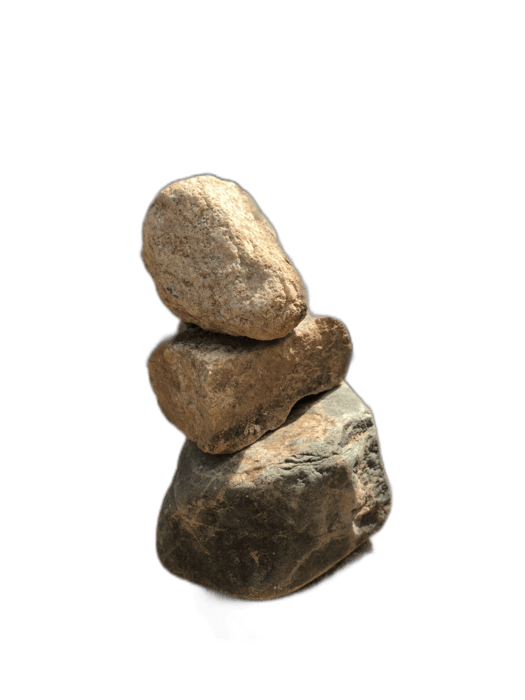
Google Photos is a great tool for organizing and sharing photos, but it does not include a background removal feature. The built-in editor offers filters, cropping, and basic adjustments, but no way to remove or change backgrounds. To remove the background from a Google Photos image, you need to download the photo and use a dedicated tool like RemoveBackgroundAI.
No signup required. Free to use.
Open the photo in Google Photos (photos.google.com or the app). Tap the three-dot menu and select "Download" to save the image to your device.
Open RemoveBackgroundAI.com in your browser and upload the downloaded photo. The AI removes the background in seconds.
Download the transparent PNG. You can upload it back to Google Photos for cloud storage, or use it directly in your projects.
Since Google Photos doesn't offer background removal at all, you need an external tool. RemoveBackgroundAI is the fastest option: no app to install, no account to create, and it works on any device where you can access Google Photos. The Pixel phone's Magic Eraser can remove objects but can't remove entire backgrounds and replace them with transparency.
Try it now for free. No signup required.
Inizia con RemoveBackgroundAI.com →No. Google Photos does not have a background removal feature. It offers filters, cropping, and basic adjustments, but not background removal. Use RemoveBackgroundAI to remove backgrounds from your Google Photos images.
Google Pixel's Magic Eraser is designed to remove specific objects from photos, not to create transparent backgrounds. For background removal, download the image and use RemoveBackgroundAI.
Yes. Google Photos supports PNG files with transparency. The transparent background will be preserved when stored in Google Photos.
Join millions of users who trust RemoveBackgroundAI for fast, accurate, and free background removal.
Inizia con RemoveBackgroundAI.com →