How to Remove Background in Paint and Paint 3D

Microsoft Paint has been a Windows staple for decades, and Windows 11 Paint recently added a basic background removal feature. Paint 3D also includes a "Magic Select" tool. However, both tools produce rough, imprecise results — jagged edges around hair, missing fingers, and leftover background patches are common. For clean, professional background removal, RemoveBackgroundAI delivers dramatically better results.

No signup required. Free to use.

How to Remove Background in Paint and Paint 3D
How to Remove Background in Paint and Paint 3D - result
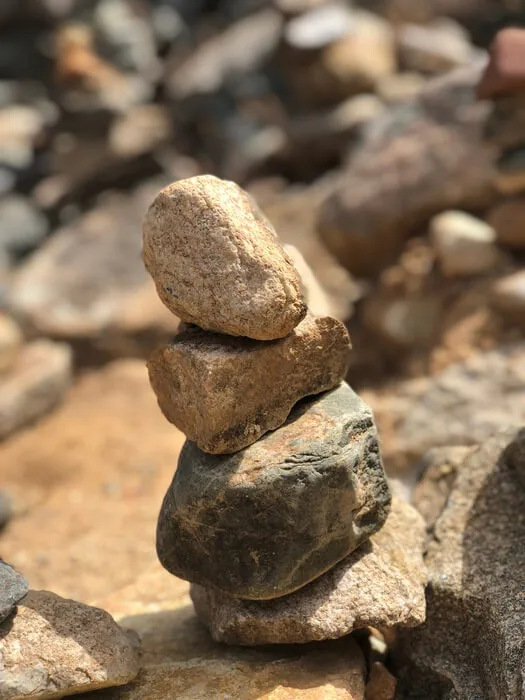
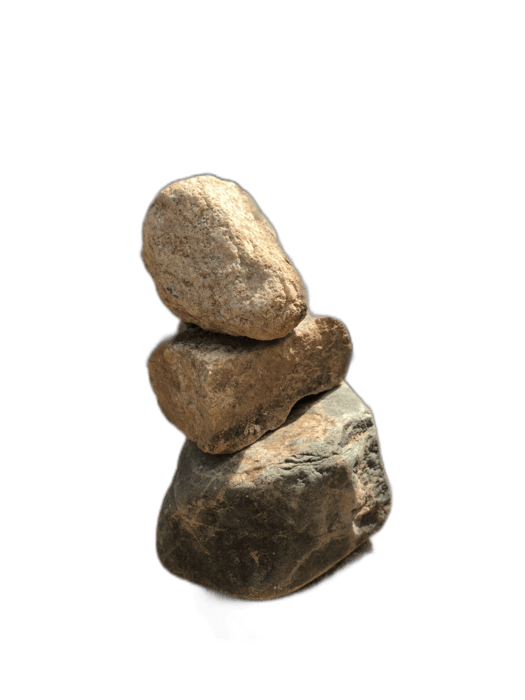
Original Result

Step-by-Step Guide

1

Upload to RemoveBackgroundAI

Instead of fighting with Paint's imprecise selection tools, go to RemoveBackgroundAI.com and upload your image. Works on any Windows PC via your browser.

2

AI removes the background precisely

The AI handles complex edges like hair, fur, and fine details that Paint simply cannot handle. Results are ready in about 5 seconds.

3

Open result in Paint (optional)

Download the transparent PNG. If you need to make simple edits (crop, add text, draw), you can open it in Paint. Note: classic Paint doesn't fully support transparency — use Paint 3D or another editor for transparent exports.

Why Choose RemoveBackgroundAI?

Windows 11 Paint's new background removal feature is a welcome addition, but it uses a basic model that's nowhere near the quality of dedicated AI tools. Paint 3D's Magic Select requires manual refinement and still leaves rough edges. RemoveBackgroundAI produces professional-grade cutouts automatically.

100% Free No Signup AI-Powered 5s Processing

Pro Tips

  • Classic MS Paint does not support transparency in saved images — it will replace transparent areas with white. Save the transparent PNG from RemoveBackgroundAI and use Paint 3D or another tool to maintain transparency.
  • Windows 11 Paint has a background removal button, but the results are noticeably worse than dedicated AI tools on complex images.
  • If you only have Paint available, you can still open the transparent PNG for basic cropping and annotation.
  • For Windows users, RemoveBackgroundAI.com in Edge or Chrome is the fastest path to professional background removal.

Ready to Remove Backgrounds?

Try it now for free. No signup required.

RemoveBackgroundAI.com सह प्रारंभ करा →

Frequently Asked Questions

Windows 11 Paint has a new background removal feature, but it produces basic results with rough edges. Classic Paint (Windows 10 and earlier) has no background removal at all. For professional results, use RemoveBackgroundAI.

Classic MS Paint does not support saving transparent images — it fills transparent areas with white. Paint 3D and other editors support PNG transparency. RemoveBackgroundAI gives you a transparent PNG you can use in any modern image editor.

Paint 3D's "Magic Select" tool is more capable than classic Paint, but still requires manual refinement and produces rough edges on complex images. RemoveBackgroundAI is automatic and far more precise.

How to Remove Background in Paint and Paint 3D

Join millions of users who trust RemoveBackgroundAI for fast, accurate, and free background removal.

RemoveBackgroundAI.com सह प्रारंभ करा →