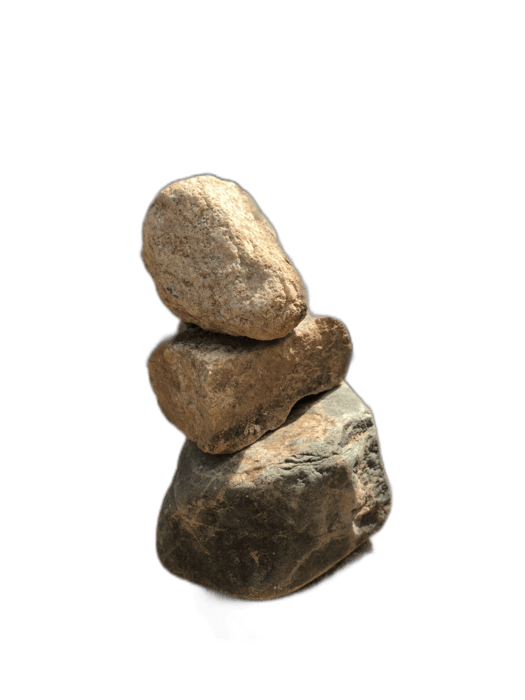
PowerPoint has a built-in "Remove Background" tool, but it's frustratingly imprecise — requiring manual marking of areas to keep and remove. RemoveBackgroundAI produces much better results automatically, giving you a clean transparent PNG that you can insert into any PowerPoint slide.
Нема потребе за пријавом. Слободно се користи.
Пошаљите слику на RemoveBackgroundAI.com. ВИ даје чист резултат у секундама — није потребно ручно означавање.
In PowerPoint, go to Insert > Pictures > This Device, and select your transparent PNG.
Слика се појављује са пуном провидношћу на слајду. Пром› јените величину и положајте је по потреби. Слојеви савршено преко позадине и других елемената.
PowerPoint's built-in Remove Background tool requires manual adjustments and often produces jagged edges. RemoveBackgroundAI's AI produces clean, professional results automatically, especially with complex subjects like people and hair.
While PowerPoint has a built-in tool (Picture Format > Remove Background), it requires manual adjustment and often produces poor results. For better quality, use RemoveBackgroundAI.com, then insert the transparent PNG into your presentation.
Провидни ПДМ из RemoveBackgroundАИ раде савршено у Гугл Слајдовима, Кључнику и Либреофице Импресион.
Придружите се милионима корисника који верују RemoveBackgroundАИ за брзо, прецизно и бесплатно уклањање позадине.
Започните с ЈПЕГ.то →