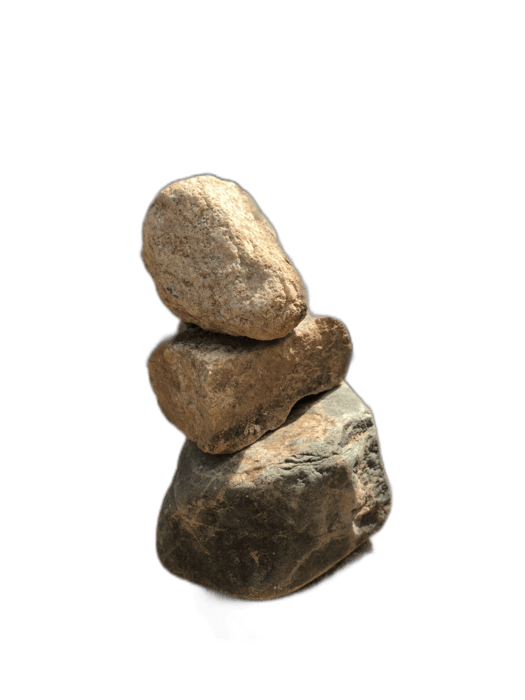
PowerPoint ní àwọn àtòjọ-ẹ̀yàn "Ṣẹ̀dà Ààyè-iṣẹ́" tí a kọ̀ nínú rẹ̀, ṣugbọn o jẹ́ tí a kò báà jẹ́ - tí o bá niló ìṣàfihàn àwọn ààyè-iṣẹ́ láti pàtó àti láti yọ. RemoveBackgroundAI náà náà gba àwọn ààyè-iṣẹ́ tí o dara jù lọ nípa ìṣàfihàn, tí o fi PNG tí o lè fi pamọ́ sínú àwọn slaid̀ PowerPoint wọn.
Kò ní ìgbàlẹ̀. Òfẹ́ fún lò.
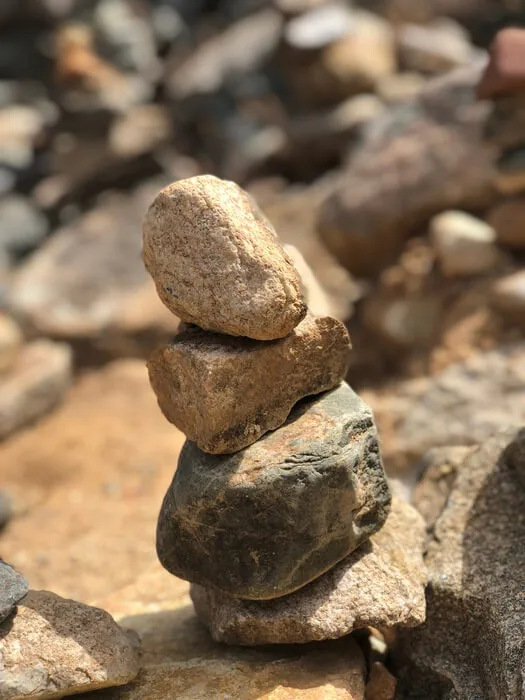
Fi àwòrán rẹ pamọ́ sí RemoveBackgroundAI.com. AI náà náà nínú àwọn ìṣàmúlò-ètò àwọn ìṣàmúlò-ètò — kò ní àwọn àwọn àmì-ìwé ìṣàmúlò-ètò ọwọ́.
Nínú PowerPoint, lọ sí Àwọn Àwòrán > Àwọn Àwòrán > Àtòjọ-ẹ̀yàn yìí, àtì yan PNG tí o gbọ́dọ̀kàn rẹ̀.
The image appears with full transparency on your slide. Resize and position it as needed. It layers perfectly over slide backgrounds and other elements.
PowerPoint's built-in Remove Background tool requires manual adjustments and often produces jagged edges. RemoveBackgroundAI's AI produces clean, professional results automatically, especially with complex subjects like people and hair.
Jẹ́ kí o ṣe nípa ọ̀fẹ́. Kò ní ìṣàfilọ́lẹ̀ kan tí a fẹ́.
Bẹrẹ pẹlu RemoveBackgroundAI.com →While PowerPoint has a built-in tool (Picture Format > Remove Background), it requires manual adjustment and often produces poor results. For better quality, use RemoveBackgroundAI.com, then insert the transparent PNG into your presentation.
Yes. Transparent PNGs from RemoveBackgroundAI work perfectly in Google Slides, Keynote, and LibreOffice Impress.
Ṣàfikún àwọn òǹlò milionù kan tí wọ́n fi RemoveBackgroundAI fọwọ́sì fún ìjánu-ìkànṣe àìpẹ̀, àìṣàfilọ́lẹ̀, àti ìjánu-ìkànṣe àìfẹ́.
Bẹrẹ pẹlu RemoveBackgroundAI.com →