Cara Menghapus Latar Belakang dalam Kata Microsoft (Alternatif yang Lebih Baik)

Microsoft Word does have a built-in "Remove Background" feature (under Picture Format > Remove Background), but it's notoriously unreliable. It uses basic color detection rather than AI, so it frequently cuts off parts of the subject (especially hair, thin objects, and similar-colored areas) or leaves chunks of background behind. For professional-quality results, it's faster and more accurate to use RemoveBackgroundAI and then insert the transparent image into Word.

Tidak perlu mendaftar, bebas digunakan.
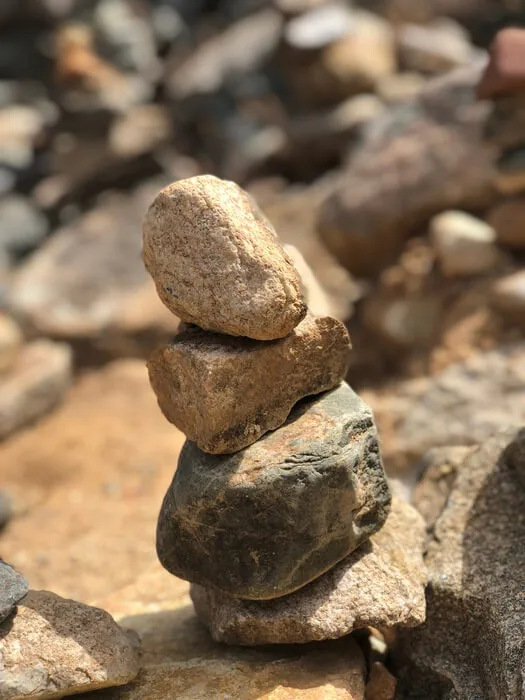
Cara Menghapus Latar Belakang dalam Kata Microsoft (Alternatif yang Lebih Baik)
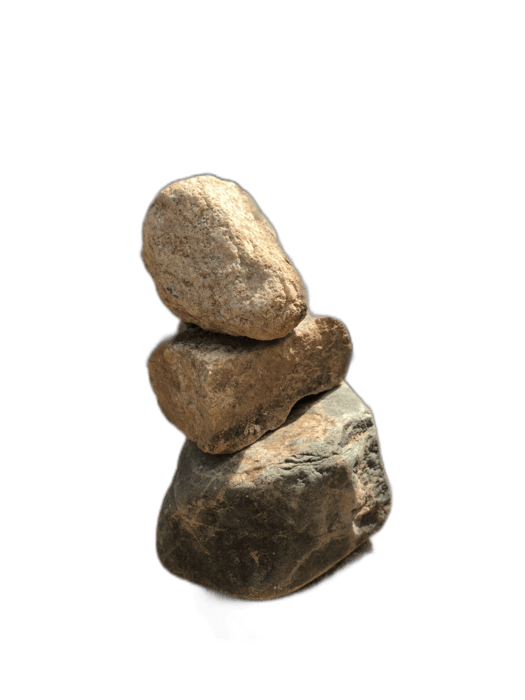
Cara Menghapus Latar Belakang dalam Kata Microsoft (Alternatif yang Lebih Baik) - result
Asli Hasil

Panduan Langkah-demi-langkah

1

Upload the image to RemoveBackgroundAI

Instead of struggling with Word's imprecise background tool, go to RemoveBackgroundAI.com and upload your image for AI-powered removal.

2

Unduh PNG transparan

AI menghasilkan potongan bersih dalam hitungan detik tidak ada "bagian penanda" manual untuk menjaga/menggerakkan" penyesuaian yang diperlukan seperti dalam Firman.

3

Sisipkan ke Microsoft Word

Dalam Word, ke Sisipkan > Gambar dan pilih PNG transparan Anda. Gambar akan muncul dengan latar belakang transparan yang memungkinkan teks dan elemen lainnya ditampilkan melalui.

Why Choose RemoveBackgroundAI?

Word's "Remove Background" tool uses basic color-based detection from over a decade ago. It requires manual marking of areas to keep and remove, and still produces rough, jagged edges. RemoveBackgroundAI uses modern AI that handles the entire process automatically with pixel-perfect precision — no manual adjustments needed.

100% Bebas Tidak ada signup AI-Poired 5s Pemrosesan

Tips Pro

  • Penghapus latar belakang Firman bekerja dengan mendeteksi "warna utama" dan menghapusnya ini benar-benar gagal dengan latar belakang yang kompleks atau berwarna-warni.
  • Setelah menyisipkan PNG transparan ke dalam Kata, klik kanan > Teks Lipat > "Di Depan Teks" untuk posisi fleksibel.
  • Jika Word mengubah PNG transparan Anda ke latar belakang putih saat menyisipkan, coba: klik kanan > Simpan sebagai Gambar untuk memverifikasi transparansi.
  • Untuk dokumen yang dibagikan sebagai PDF, transparansi akan diawetkan dengan benar ketika Anda mengekspor dari Word.

Siap Menghapus Latar Belakang?

Cobalah sekarang secara gratis, tidak perlu mendaftar.

Mulai dengan RemoveBackgroundAI.com →

Pertanyaan yang Sering Diajukan

Yes, Word has a basic "Remove Background" feature under Picture Format. However, it uses simple color detection, not AI, so it's unreliable with complex images. For better results, use RemoveBackgroundAI and insert the transparent PNG into Word.

Word's tool uses color-based detection and often misidentifies parts of your subject as background, especially when colors are similar. AI-powered tools like RemoveBackgroundAI understand image content semantically, producing far more accurate results.

Kata sepenuhnya mendukung transparansi PNG. Masukkan gambar melalui > Gambar, dan daerah transparan akan ditampilkan melalui latar belakang halaman atau teks di bawahnya.

Cara Menghapus Latar Belakang dalam Kata Microsoft (Alternatif yang Lebih Baik)

Join millions of users who trust RemoveBackgroundAI for fast, accurate, and free background removal.

Mulai dengan RemoveBackgroundAI.com →