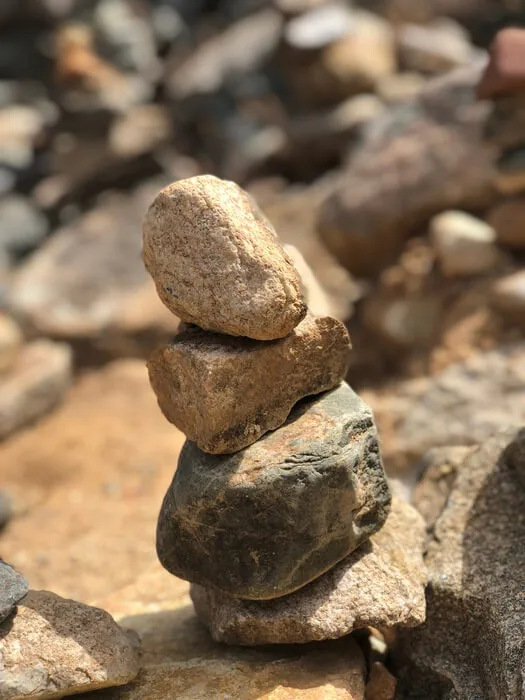
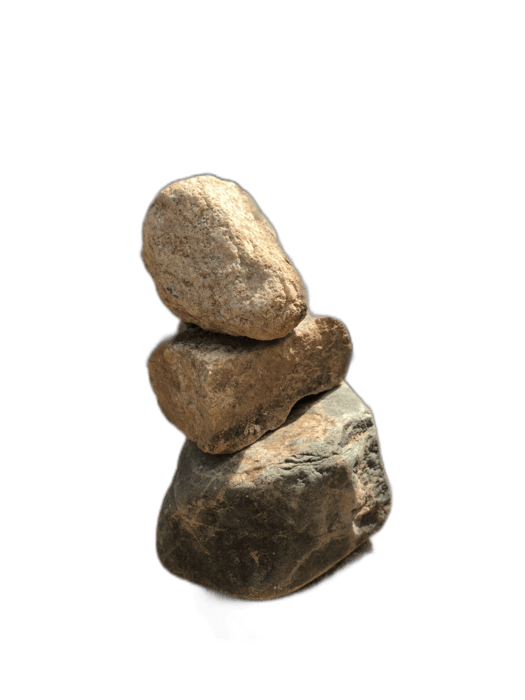
Google Slides does not have a background removal tool. If you want to use a photo without its background in a presentation, you need to process it externally first. RemoveBackgroundAI creates transparent PNGs that import perfectly into Google Slides, layering cleanly over slide backgrounds and other elements.
Kò ní ìgbàlẹ̀. Òfẹ́ fún lò.
Fi àwòrán rẹ pamọ́ sí RemoveBackgroundAI.com ki o si gba PNG tí a lè rí.
Nínú Àwọn Àtòjọ-ẹ̀yàn Google, tẹ̀ Páǹtó > Àwòrán > Fipalẹ̀ láti inú kọ̀ǹpútà. Yan PNG tí o ní ìwọ̀n láti rí.
The image appears with full transparency. Drag and resize it on your slide. It layers cleanly over any slide background.
Google Slides has no background removal feature, unlike PowerPoint. RemoveBackgroundAI fills this gap for free, making Google Slides presentations look just as professional as PowerPoint decks.
Jẹ́ kí o ṣe nípa ọ̀fẹ́. Kò ní ìṣàfilọ́lẹ̀ kan tí a fẹ́.
Bẹrẹ pẹlu RemoveBackgroundAI.com →No. Google Slides does not have a background removal tool. Use RemoveBackgroundAI.com to create your transparent PNG, then insert it into Google Slides.
Yes. Google Slides fully supports transparent PNG images. The transparency is preserved when you insert the image into your slide.
Ṣàfikún àwọn òǹlò milionù kan tí wọ́n fi RemoveBackgroundAI fọwọ́sì fún ìjánu-ìkànṣe àìpẹ̀, àìṣàfilọ́lẹ̀, àti ìjánu-ìkànṣe àìfẹ́.
Bẹrẹ pẹlu RemoveBackgroundAI.com →