How to Remove Background for Photoshop Projects

Even experienced Photoshop users can save time by pre-processing background removal with AI. Instead of spending 5-15 minutes per image with the Pen Tool, Quick Selection, or Select and Mask, use RemoveBackgroundAI for instant removal, then import the transparent PNG into Photoshop for fine-tuning if needed.

No signup required. Free to use.

How to Remove Background for Photoshop Projects
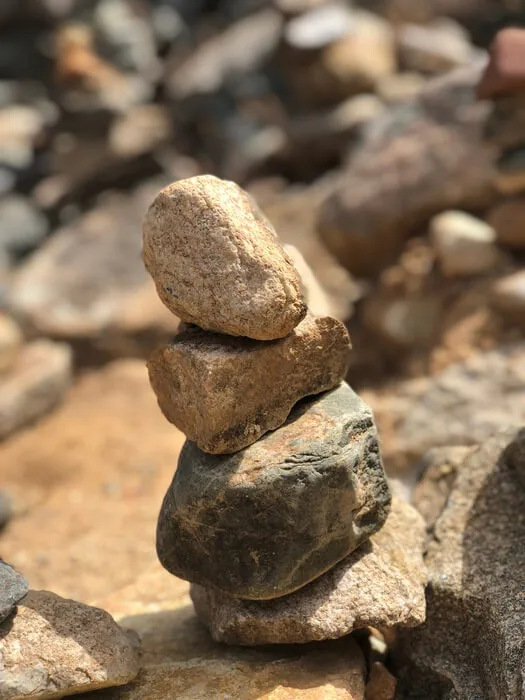
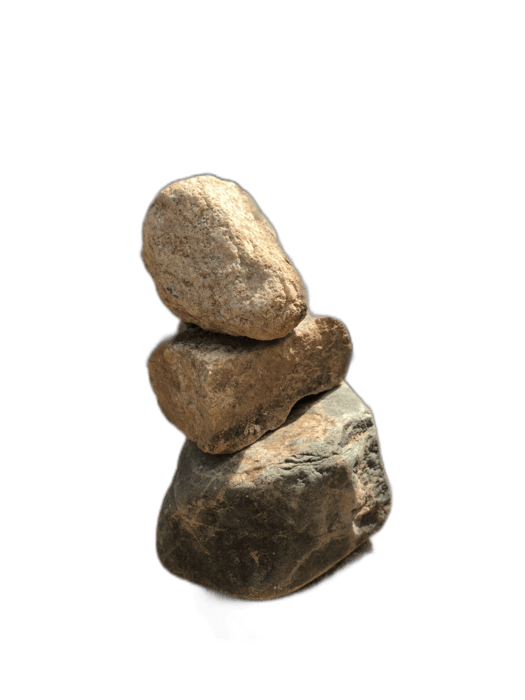
How to Remove Background for Photoshop Projects - result
Original Result

Step-by-Step Guide

1

Upload to RemoveBackgroundAI

Process your image with our AI for instant background removal.

2

Download transparent PNG

Get the result as a high-resolution transparent PNG.

3

Open in Photoshop

Open the PNG in Photoshop. The transparency is preserved as an alpha channel. Make any additional edits or compositing.

Why Choose RemoveBackgroundAI?

This workflow combines the speed of AI with Photoshop's precision. Use RemoveBackgroundAI for the heavy lifting (90% of the work), then Photoshop for final touches.

100% Free No Signup AI-Powered 5s Processing

Pro Tips

  • For batch processing, use our API to process hundreds of images, then import them all into Photoshop.
  • The AI handles hair masking better than Photoshop's Select Subject in many cases.
  • Save your Photoshop workflow by starting with a pre-masked image.

Ready to Remove Backgrounds?

Try it now for free. No signup required.

Fänkt mat RemoveBackgroundAI.com un →

Frequently Asked Questions

In Photoshop, you can use Select > Subject, Quick Selection Tool, Magic Wand, or Pen Tool. However, for faster results, use RemoveBackgroundAI first and import the transparent PNG into Photoshop.

How to Remove Background for Photoshop Projects

Join millions of users who trust RemoveBackgroundAI for fast, accurate, and free background removal.

Fänkt mat RemoveBackgroundAI.com un →