How to Remove Background for Canva Designs

Canva is a fantastic design tool, but its background removal feature requires a Pro subscription. Here's the workaround: use RemoveBackgroundAI to create your transparent PNGs for free, then import them into Canva (free version) for your designs.

No signup required. Free to use.

How to Remove Background for Canva Designs
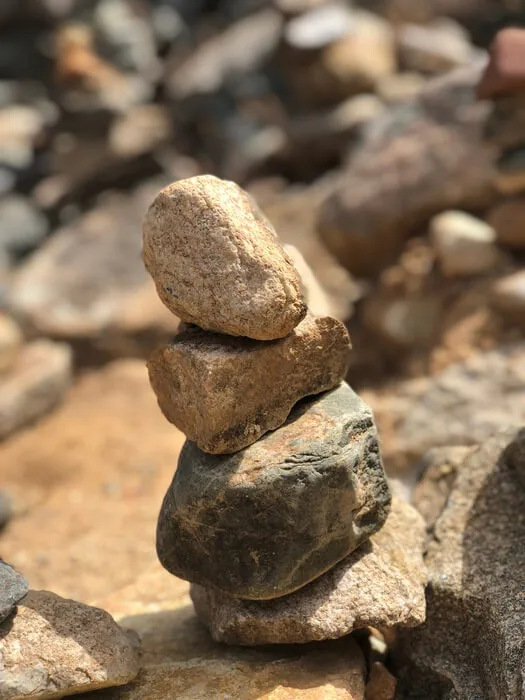
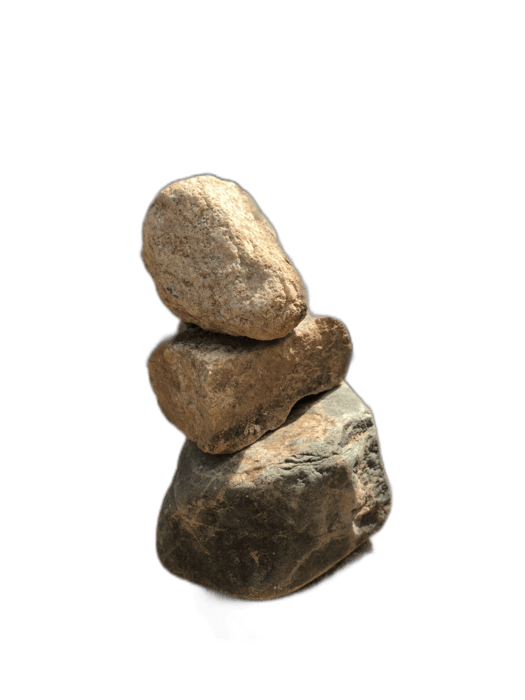
How to Remove Background for Canva Designs - result
Original Result

Step-by-Step Guide

1

Remove the background

Upload your image to RemoveBackgroundAI.com and download the transparent PNG.

2

Open your Canva project

Go to Canva and open or create your design project.

3

Upload and use

Click "Uploads" in Canva's sidebar, upload your transparent PNG, and drag it into your design. The transparency is preserved.

Why Choose RemoveBackgroundAI?

This workflow gives you Canva Pro's background removal capability for free. The transparent PNGs from RemoveBackgroundAI work perfectly in Canva's free editor.

100% Free No Signup AI-Powered 5s Processing

Pro Tips

  • Upload multiple transparent PNGs to your Canva uploads for reuse across projects.
  • Transparent PNGs layer perfectly over Canva's background templates.
  • For Canva presentations, pre-process all your images with our tool before building slides.

Ready to Remove Backgrounds?

Try it now for free. No signup required.

RemoveBackgroundAI.com ഉപയോഗിച്ച് ആരംഭിക്കുക →

Frequently Asked Questions

Background removal is part of Canva Pro ($12.99/month). By using RemoveBackgroundAI (free) + Canva Free, you get the same result without paying.

How to Remove Background for Canva Designs

Join millions of users who trust RemoveBackgroundAI for fast, accurate, and free background removal.

RemoveBackgroundAI.com ഉപയോഗിച്ച് ആരംഭിക്കുക →